Can You Use an eSIM as a Hotspot? When It's Useful for Travel
 Astaroam Team
In this article
Yes, you can use an eSIM as a mobile hotspot. With a compatible phone and a plan that supports tethering, you can share your eSIM's mobile data with a laptop, tablet or another phone. All current Astaroam eSIM plans support hotspot sharing, making it a useful option when travelling without reliable Wi-Fi.
But when is using a hotspot actually worthwhile, and will it use up your travel data faster? Here's what you need to know.
What is a mobile hotspot?
A mobile hotspot allows your phone to share its internet connection with other devices. Your phone uses mobile data from its SIM or eSIM, then creates a Wi-Fi network that nearby devices can join.
For example, if you're travelling with a laptop that has no mobile connection of its own, you can connect it to your phone's hotspot and use your eSIM data to get online.
You don't need a separate pocket Wi-Fi router. Your phone handles the connection.
When is using an eSIM hotspot useful?
1. Working from your laptop while travelling
Imagine you're in a hotel abroad and the Wi-Fi is unreliable, but you need to send emails, access work documents or join a video meeting.
Instead of relying on the hotel's connection, you can enable your phone's hotspot and connect your laptop using your travel eSIM.
This is particularly useful for short periods of remote working. However, video meetings, cloud syncing and large downloads can consume substantial data, and some work VPNs or security systems may have additional requirements.
2. Sharing internet with a partner or family member
If you're travelling together, one person can share their eSIM connection with another phone or tablet.
For example, your partner might need to check directions or send a message but doesn't have mobile data available. They can connect to your hotspot rather than immediately purchasing another data package.
Remember: Everyone connected uses the same data allowance. Sharing may be convenient for occasional use, but separate eSIMs can be more practical when people need independent connections or plan to spend time apart.
3. Connecting a Wi-Fi-only tablet
Many tablets don't have a SIM card or eSIM capability. That doesn't stop you from using them online while travelling.
Connect the tablet to your phone's hotspot just as you would connect to a normal Wi-Fi network. You can then browse websites, check emails or use apps through your phone's mobile connection.
4. Avoiding unreliable public Wi-Fi
Airport, hotel and café Wi-Fi can sometimes be slow, unavailable or inconvenient to access.
If you have mobile coverage, an eSIM hotspot provides an alternative connection for your laptop or other devices. It also means you aren't relying on an unfamiliar public Wi-Fi network.
A mobile hotspot is not a complete security solution, however. Keep your devices updated, use a strong hotspot password and follow normal online security precautions.
5. Getting temporary internet when your broadband is down
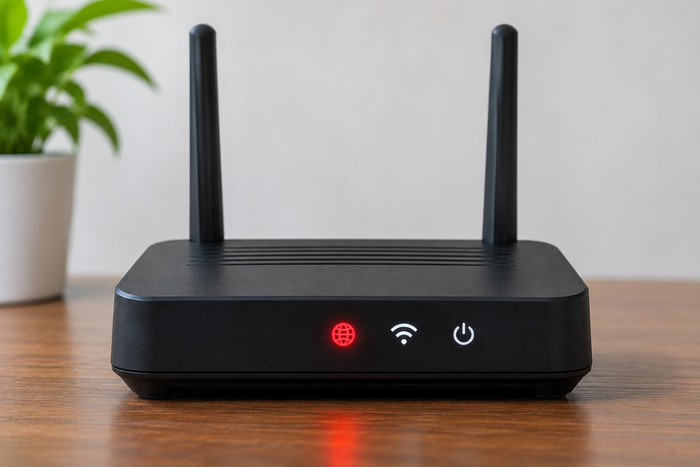
A hotspot can also help at home. If your broadband stops working, you may be able to share mobile data with your laptop until the connection is restored.
We've covered this situation in more detail in our guide to getting temporary internet when broadband is down in the UK.
How to use an eSIM as a hotspot on iPhone
- Open Settings.
- Go to Mobile Service or Mobile Data.
- Select your travel eSIM as the line used for mobile data.
- Make sure the eSIM is enabled and mobile data is working. Enable Data Roaming for the eSIM if required by its instructions.
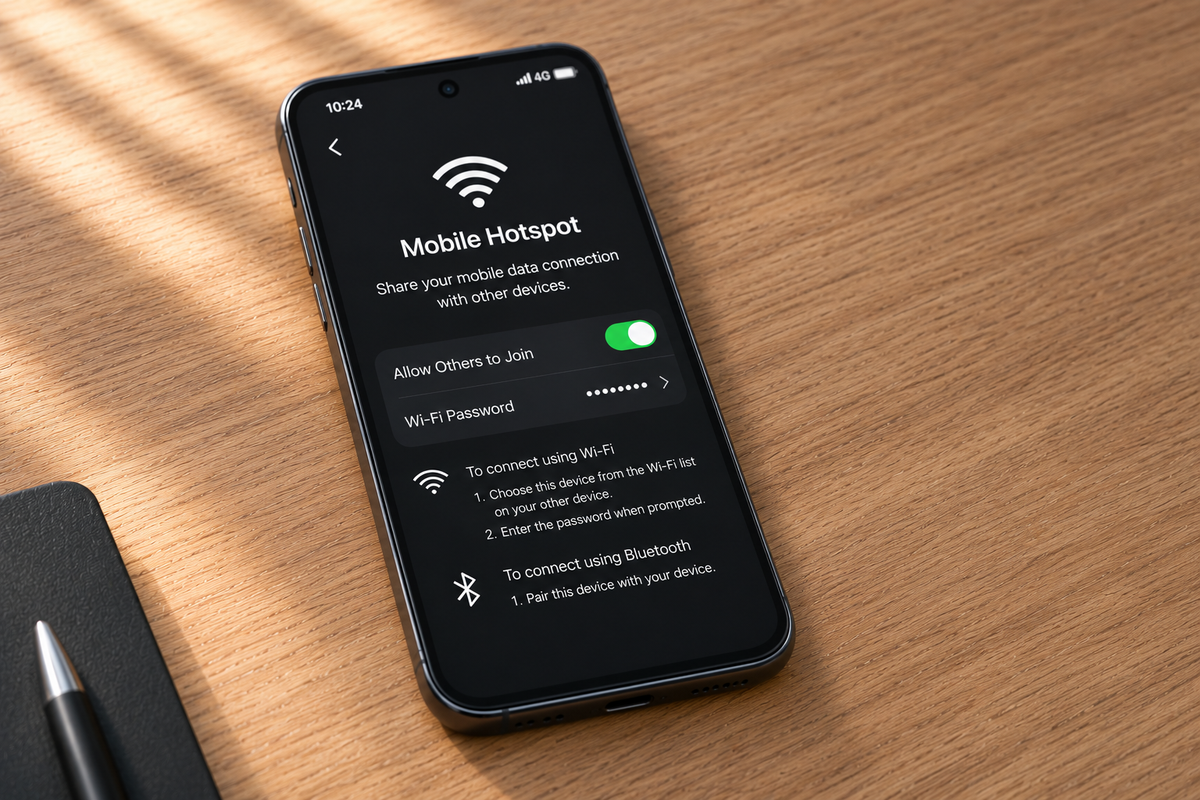
- Open Personal Hotspot and turn on Allow Others to Join.
- On your laptop or other device, select your iPhone from the Wi-Fi list and enter the hotspot password.
If you're using two SIMs, check that the correct line is selected for mobile data. Otherwise, you could accidentally share data from your regular mobile contract instead of your travel eSIM.
For additional device-specific guidance, see Apple's Personal Hotspot instructions.
How to use an eSIM as a hotspot on Android
- Open Settings.
- Make sure your travel eSIM is enabled and selected for mobile data.
- Confirm that mobile data works on your phone, with Data Roaming enabled if required.
- On Samsung Galaxy devices, go to Connections > Mobile Hotspot and Tethering. On many other Android devices, look under Network & internet > Hotspot & tethering.
- Turn on Mobile Hotspot or Wi-Fi hotspot.
- Connect your laptop, tablet or other phone using the hotspot's Wi-Fi name and password.
Menus vary between manufacturers and Android versions. Google's hotspot and tethering guide provides further instructions.
Does using a hotspot use more eSIM data?
Enabling a hotspot doesn't automatically consume a large amount of data. What matters is what the connected devices do.
For example, checking a few emails on a laptop may use relatively little data. Streaming high-definition video, downloading software updates or syncing large files can use several gigabytes.
If two people are connected to the same hotspot, their combined usage comes out of the same eSIM allowance.
To help your data last longer:
- Pause large downloads and automatic updates.
- Reduce video streaming quality when possible.
- Turn off unnecessary cloud backups and syncing.
- Disconnect devices you're not using.
- Monitor your remaining eSIM allowance.
Not sure how much data to buy? Try the Astaroam Data Usage Checker to estimate your requirements based on your destination, trip length and activities. Allow extra data if you expect significant laptop downloads or several people sharing the connection.
Why isn't my eSIM hotspot working?
If another device connects to your hotspot but can't access the internet, try these checks:
- Test mobile data on the phone. Turn off Wi-Fi temporarily and check whether a website loads using the eSIM.
- Check the selected data line. Make sure your travel eSIM, rather than your regular SIM, is providing mobile data.
- Check Data Roaming. Many travel eSIMs require it to be enabled on the eSIM line.
- Restart the hotspot. Turn hotspot sharing off and back on, then reconnect the other device.
- Check the Wi-Fi password. Forget the hotspot network on the connected device and join it again if necessary.
- Check your allowance and coverage. Your data may have run out, your plan may have expired, or the mobile signal may be too weak.
If mobile data works on your phone but tethering still doesn't, check the device's hotspot settings and contact support with your phone model and a description of the problem.
Frequently asked questions
Can I share my eSIM data with another phone?
Yes. If your phone supports hotspot sharing, another phone can connect to it over Wi-Fi and use the eSIM's mobile data connection.
Can I use an eSIM hotspot abroad?
Yes, provided the eSIM covers your destination, your phone supports tethering and you have a working mobile data connection. All current Astaroam plans support hotspot sharing.
Can I use a hotspot without a physical SIM card?
Yes. A compatible phone can use an active eSIM for mobile data without needing a physical SIM card. You can then share that connection through its hotspot feature.
Does using a hotspot cost extra?
Astaroam doesn't apply a separate hotspot charge to its current eSIM plans. Hotspot usage draws from the plan's data allowance and remains subject to the plan's validity and any applicable fair-use conditions. Charges from your regular mobile provider may apply if your phone uses the wrong data line.
Can I use an unlimited eSIM as a hotspot?
Hotspot sharing is supported on Astaroam's current unlimited plans, but unlimited does not necessarily mean unlimited high-speed data. Check the individual plan's fair-use policy and any speed reductions before relying on it for heavy usage.
Share your travel data with Astaroam
Whether you're connecting a laptop in a hotel, sharing directions with a travelling companion or using a Wi-Fi-only tablet, a hotspot can help you get more flexibility from your travel eSIM.
All current Astaroam eSIM plans support hotspot sharing, so you can choose a data allowance that suits your trip and connect compatible devices when needed.
Estimate how much travel data you need, then explore the available eSIM plans for your destination.
Where to next?
From weekend breaks to longer adventures, find an eSIM for where you are heading next.