How to Transfer an eSIM to iPhone 18 Pro: A Complete UK Guide (2026)
 Astaroam Team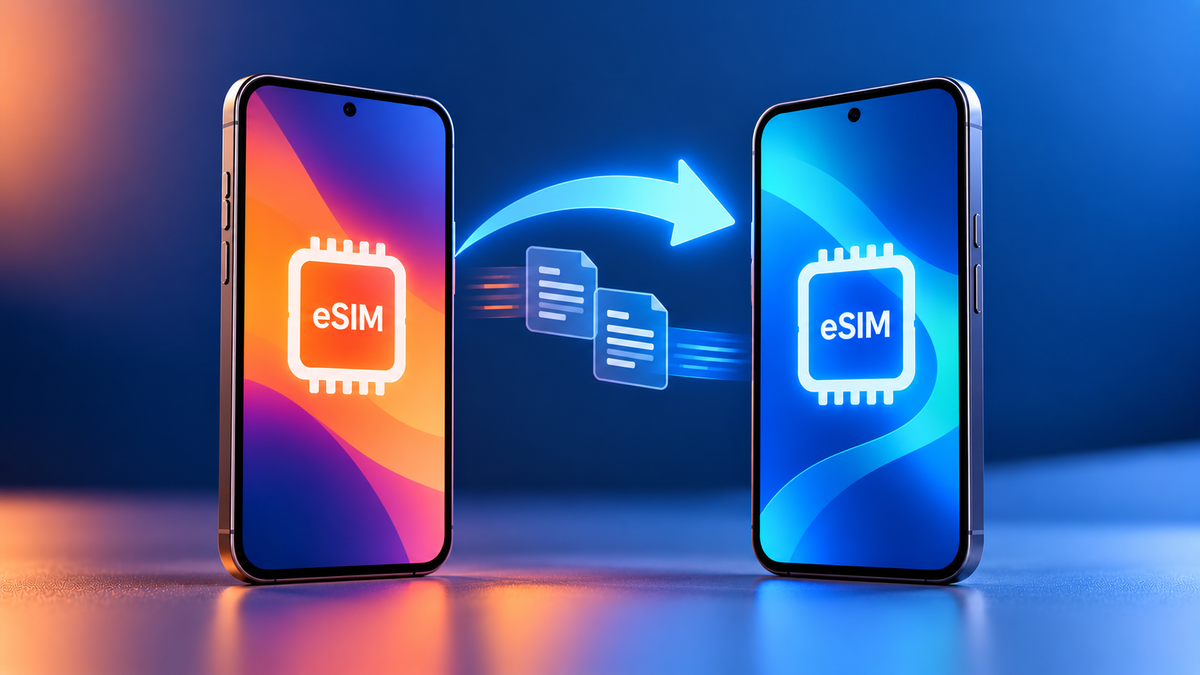
In this article
Moving your UK mobile number to an iPhone 18 Pro or Pro Max may be straightforward using Apple's eSIM Quick Transfer, but availability depends on your network and plan. If your UK model has a physical SIM tray, you can move a compatible physical SIM instead. Travel eSIMs follow different rules: many cannot be transferred after installation. Keep any active travel eSIM on your old phone and check with its provider before deleting or replacing it.
Two kinds of eSIM on one phone
Your iPhone can hold more than one eSIM, and this guide covers two types. Your main eSIM is your everyday UK number from a network such as EE, O2 or Vodafone. A travel eSIM is a separate, prepaid data plan you add for a trip abroad. They move to a new phone in different ways, so this guide is split in two. Part 1 covers your UK number. Part 2 covers travel eSIMs.
Part 1: Moving your UK number to an iPhone 18 Pro
Which route applies to you?
| Where your UK number is now | What to do |
|---|---|
| An eSIM on your old iPhone | Use eSIM Quick Transfer if your network supports it. If not, ask your network for a new eSIM. |
| A physical SIM card | Move the card to the new iPhone, or convert it to an eSIM if your network offers that. |
| An Android phone | Use Apple's Android transfer if your network is on Apple's list. Otherwise ask your network. |
Before you start
- Keep every SIM and eSIM on your old phone. Do not remove anything and do not erase the phone yet.
- Update your old iPhone. Apple says eSIM Quick Transfer needs iOS 18.4 or later on both phones.
- Sign in to the same Apple Account on both phones.
- Switch on Bluetooth on both and keep them side by side.
- Unlock the old iPhone with its passcode.
- Connect the new iPhone to Wi-Fi.
- Do this at home, a few days before you travel. If a line gets stuck, your network is far easier to reach from home than from an airport.
If possible, set up and test your UK number while you are still at home and can contact your network. Keep your old phone available until you have confirmed that calls and texts work on the new one.
From another iPhone: eSIM Quick Transfer
If your new iPhone offers to transfer your number during setup, follow the prompts. According to Apple, this can move a line from a physical SIM as well as an eSIM, and on iOS 26 or later you can bring across more than one number.
If you skipped that screen, you can do it afterwards:
- On your iPhone 18 Pro, open Settings and tap Mobile Service.
- Tap Add eSIM. If no line is installed yet, the button may read Set Up Mobile Service.
- Choose the number to transfer. If no numbers are listed, tap Transfer From Nearby iPhone.
- On your old iPhone, tap Transfer to confirm. If you are asked for a verification code, enter the one shown on the new iPhone.
- Wait for the line to activate. If a banner asks you to finish setting up your network provider's plan, tap it and complete the steps on your network's page.
When the transferred line activates on the new iPhone, Apple says it is deactivated on the old one. Check that calls, texts and mobile data work on the new phone before erasing or trading in the old device. Menu wording can vary by iOS version and network.
If Quick Transfer does not appear or fails
Check that both iPhones meet Apple's requirements, are close together, have Bluetooth enabled and are connected to a working network. Restart the phones and try the setup steps again if appropriate. If your number is not offered, activation remains pending or service stops working, contact your UK mobile network for its supported activation or replacement-eSIM process. Do not delete an existing eSIM as a troubleshooting step unless your provider specifically instructs you to. See Apple's current eSIM setup instructions.
Which UK networks support eSIM Quick Transfer?
As checked in October 2026, Apple lists Three (3), EE, O2, Sky Mobile and Vodafone under eSIM Quick Transfer in the UK. Being on this list does not guarantee that every account, tariff or device combination can use it. If you use another provider, including giffgaff, VOXI, SMARTY or Tesco Mobile, ask that provider which transfer method applies to your line. The list can change: check Apple's current network provider list and your own provider before starting.
If your network does not support Quick Transfer, it can usually issue a replacement eSIM through its app, a QR code or a shop visit.
From a physical SIM
iPhone 18 Pro and Pro Max models sold in the UK have a nano-SIM tray as well as eSIM, so the simplest route is to move your SIM card into the new phone.
If you would prefer the line as an eSIM, open Settings, tap Mobile Service and look for a Convert to eSIM option for that number. It only appears where your network supports it. After conversion the plastic card stops working.
Buying abroad? Apple sells the iPhone 18 Pro and Pro Max without a SIM tray in some countries, including the United States, Canada, Japan, Saudi Arabia and the UAE. If you pick one up on a trip, for example in Jeddah or Dubai, your UK line will have to become an eSIM, so check that your UK network offers one before you buy.
From an Android phone
Apple's standard advice is to ask your network to move the line, either by activating an eSIM for you or by sending a QR code.
There is also a direct transfer on iOS 26 or later, with conditions. Apple says you need a compatible Android phone on Android 16 or later, both phones on Wi-Fi with Bluetooth on, and a supported network. At the time of writing, EE is the only UK network on Apple's list for this. The steps are on Apple's Android transfer page.
If your network sends you a QR code
You do not need a second screen to scan it. On iOS 17.4 or later, if the QR code arrives in your email or browser on the iPhone itself, Apple says you can tap and hold the code and then tap Add eSIM. Otherwise, open the email on another device and scan it with the iPhone camera.
Part 2: Travel eSIMs and your new iPhone
Can you transfer a travel eSIM to an iPhone 18 Pro?
Often not. Many travel eSIMs are issued for installation on a single device and cannot be moved using Apple's eSIM Quick Transfer. A QR code may be single-use, and deleting the eSIM does not necessarily make it available to install again. Policies vary between providers and plans, so check the specific terms or ask your provider before removing the eSIM from your old phone.
Deleting an installed travel eSIM may permanently prevent you from using or reinstalling the remaining plan. Do not remove it, reset your old phone or trade that phone in until you have checked your provider’s transfer and reinstallation policy.
What to do instead
If the travel eSIM is still installed, active and within its validity period, you can generally continue using it on the original phone, subject to the provider's terms. Depending on the plan, your options may include:
- Take the old iPhone with you and use the travel plan on it while it remains valid and has available data.
- Share the data to your new iPhone. Switch on Personal Hotspot on the old iPhone and connect your iPhone 18 Pro to it like any Wi-Fi network, if your plan supports hotspot.
- Purchase a new plan for the new iPhone if the provider cannot move or reissue the existing one.
If you have bought a travel eSIM but not installed it yet, the answer is simpler: install it on the new iPhone and not the old one.
If you have an Astaroam eSIM
An Astaroam travel eSIM that has already been installed is not transferable to another phone. Please do not delete it from your old iPhone while you still need the plan, even if it has unused data or remaining validity.
While the plan remains active and valid, you can continue using it on the original phone. You may also be able to share its data with your iPhone 18 Pro through Personal Hotspot where the plan and device support tethering. Check the details of your specific plan before travelling. If you are unsure, contact Astaroam through our contact page or WhatsApp with your order number so we can check the applicable plan information.
Travel settings to check on the new iPhone
- Mobile data line: abroad, choose your travel eSIM under Mobile Service, Mobile Data.
- Data roaming: many travel eSIMs need Data Roaming switched on for the travel line. Check your plan instructions.
- Your UK line: switch Data Roaming off for your UK number if you do not want it used for data abroad.
- Labels: rename your lines, for example "UK" and "Travel", so it is obvious which is which.
Our installation guide covers these settings in more detail.
The order to do it in before a trip
- Update and back up your old iPhone.
- Check the new iPhone is not locked to a network: open Settings, General, About and look for the network lock line. It should read "No SIM restrictions". A locked phone cannot use another provider's eSIM.
- Move your UK number using Part 1, then make a call and send a text from the new phone.
- While the old phone is still working, sign in to your banking apps and anything else that verifies you by text or by approving from your old device.
- Decide what to do with any travel eSIM using Part 2.
- Erase or trade in the old iPhone only when every line you need is working on the new one, and any travel plan on it is finished.
Common questions
Can I transfer my eSIM to an iPhone 18 Pro without contacting my network?
For your UK number, yes, if your network supports eSIM Quick Transfer. If it does not, your network will need to move the line for you.
Does the iPhone 18 Pro have a SIM card slot in the UK?
Yes. UK models have a nano-SIM tray alongside eSIM. Models sold in some other countries have no tray.
Does restoring from an iCloud backup move my eSIM?
No. A backup restores your apps, photos and settings. Your lines are moved separately, using the transfer steps above or through your network.
What happens to the eSIM on my old iPhone?
Apple says a transferred line is deactivated on your old iPhone once it activates on the new one. A travel eSIM is not transferred, so it stays on the old phone and keeps working there.
My old iPhone is lost or broken. Can I still move my lines?
Quick Transfer needs the old phone, so ask your network to move your UK number. For a travel plan, contact the provider you bought it from.
Will a travel eSIM work on an iPhone 18 Pro?
The iPhone 18 Pro and Pro Max support eSIM, so a new travel eSIM can be installed as long as the phone is not locked to one network. You can check your model with our compatibility checker.
Planning a trip with your iPhone 18 Pro?
For your next trip, start with a fresh plan on the new phone. You can browse eSIM plans by destination and install before you travel.
Sources: Apple Support, Set up eSIM on iPhone, Transfer your eSIM from Android to iPhone and network providers that offer eSIM service.
Information checked: 8 October 2026. This guide is general guidance, not a guarantee of transfer or activation. Features, availability and menu names depend on your iPhone model, iOS version, network and individual plan and may change. Check Apple's current instructions and your provider's terms before deleting an eSIM, converting a SIM or resetting a phone. Astaroam is independent of Apple and the mobile networks mentioned. iPhone is a trademark of Apple Inc.
Where to next?
From weekend breaks to longer adventures, find an eSIM for where you are heading next.